Expense Report Guide
Generate professional monthly expense reports in minutes with Alter AI. Learn how to process receipts, handle multiple currencies, auto-categorize expenses, extract VAT, and create Gmail drafts automatically.
Video Tutorial
Getting Started with Expense Reports
What the Action Does
The Monthly Expenses Report action is a built-in Alter workflow that:
- Scans all your expense files (receipts, invoices, screenshots)
- Extracts vendor, date, amount, currency, and VAT information
- Auto-categorizes expenses into logical groups (Travel, SaaS, Meals, etc.)
- Smartly detects currencies and adapts to your location
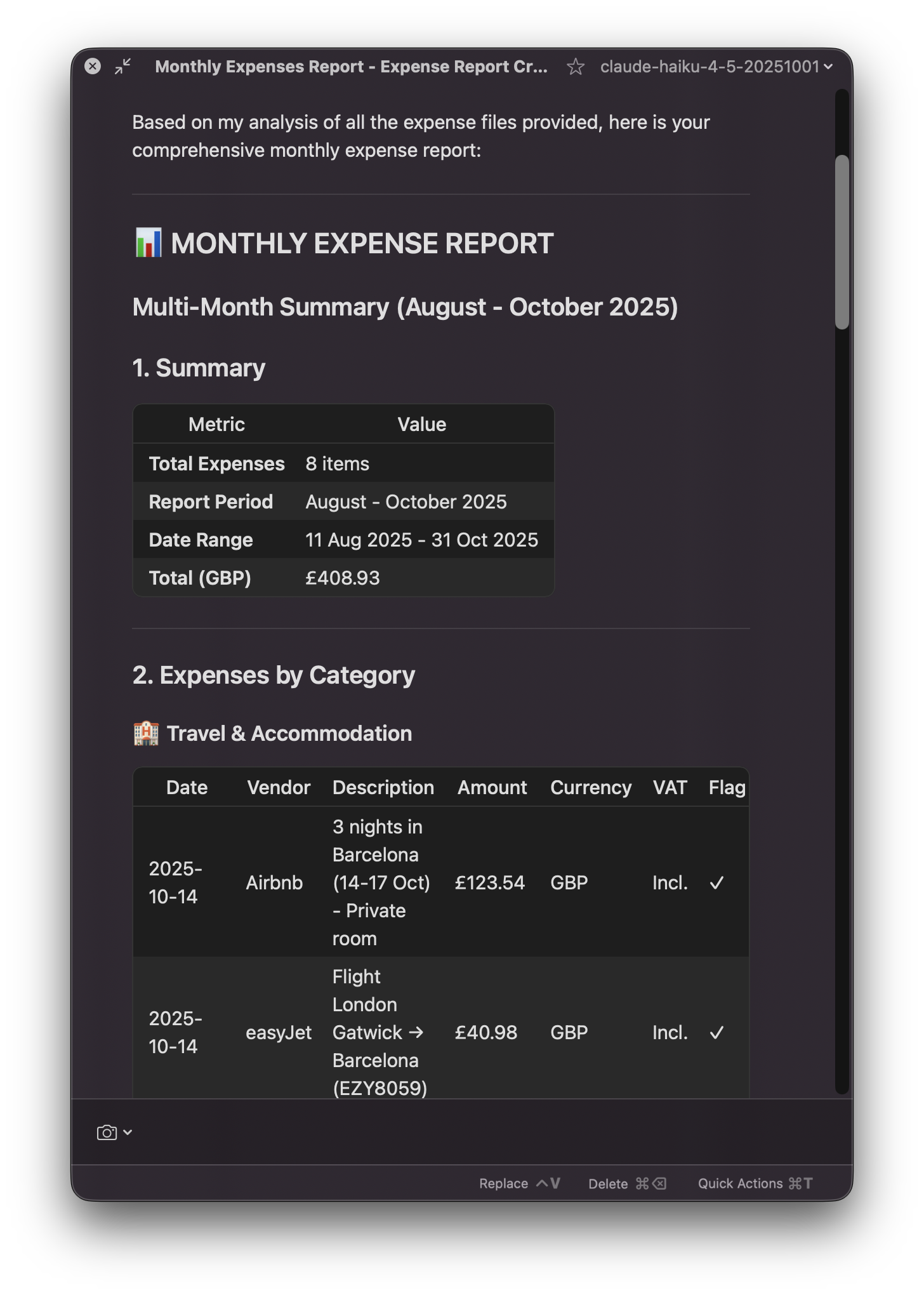
- Generates a formatted markdown report
- Offers to create a Gmail draft automatically
Supported File Types
Drop any combination of these into Alter:
- Images: JPG, PNG, HEIC (receipt photos)
- Documents: PDF (invoices), XLSX (expense sheets), DOCX
- Screenshots: PNG, JPG (digital receipts)
- Email receipts: EML format (forwarded confirmations)
Basic Workflow: Drag, Drop, Generate
Prepare Your Expense Folder
Create a folder containing all your receipts for the month. You don’t need to rename them, but keeping them organized helps.
Invoke the Action
- Open Alter
- Drag your expense folder onto the Alter notch
- Type:
"monthly expense report" - (Optional) Specify month: Add “November 2025” or leave blank for current month
- Press Enter
Review and Submit
Alter processes the files, generates the report, and offers to create a draft email for your finance team.
Smart Currency Handling
Single Currency Mode
If all your receipts are in the same currency (e.g., all USD or all EUR):
- Alter detects this automatically.
- The report is generated immediately in that native currency.
- No foreign exchange (FX) conversion tables are shown.
Multi-Currency Mode & Learning
If you have expenses in multiple currencies (e.g., a trip involving USD, EUR, and GBP), Alter enters an interactive mode:
- Analysis: It identifies the most frequent currency used.
- Confirmation: Before generating the report, Alter will ask: “The most frequent currency is EUR. Would you like me to generate the report with all totals converted to EUR?”
Core Features in Action
Auto-Categorization
Alter automatically sorts expenses into logical categories to make approval faster:
- Travel & Accommodation – Flights, hotels, Airbnb
- Transport – Uber, taxi, fuel, parking
- Food & Dining – Restaurants, team dinners
- SaaS & Subscriptions – Software tools, cloud services
- Office & Equipment – Hardware, supplies
- Professional Services – Legal, accounting
- Other – Miscellaneous
VAT/Tax Extraction
Alter identifies and summarizes taxes to ensure you claim everything you’re owed:
- Extracts VAT rates (20%, 5%, 0% or local equivalents)
- Calculates net amounts vs. gross amounts
- Flags missing VAT if the receipt is unclear
- Tax summary table provided at the bottom of the report
Anomaly Detection
The AI acts as a first line of defense against errors:
- Out-of-period expenses – Flags receipts dated outside the report month
- Recurring subscriptions – Notes monthly recurring costs
- Duplicate entries – Warns about potential double-counting
Advanced Features: Edit
Edit: Refine Before Sending
Clean up your report without regenerating:
- Click the Edit button on your generated report
- Remove items – Delete personal expenses accidentally included
- Search and replace – Fix vendor typos (e.g., “Ubr” -> “Uber”)
- Save changes – Edits persist in the report
Creating the Gmail Draft
Automatic Draft Generation
After your report is ready, Alter will ask: “Would you like me to create a Gmail draft with this expense report?”
- Respond with the recipient email (e.g.,
[email protected]) - Alter creates the draft directly in your Gmail account using HTML formatting
- Click “Open in Gmail” to view it
Important: for this feature to be active, you need to have enable the “Create Gmail Draft” tool in your Tool Manager

What’s in the Draft
The draft is professional and ready to send:
- Subject line: “Expense Report - [Month] [Year] - Review Required”
- Summary table: Total count and cost
- Formatted tables: Itemized expenses with borders and alignment
- Footer: Source file count and generation timestamp
Advanced: Workspace Automation
Eliminate the drag-and-drop step entirely by using Workspaces
Step 1: Create a Permanent Workspace
- Create a folder on your Mac:
~/Expenses/Current/ - Drag it into Alter
- Press
Cmd+Jto create a Workspace - Name it:
"Current Expenses"
Step 2: Attach Workspace to Action
- Open Alter Action Editor
- Select “Monthly Expenses Report”
- Under Advanced, select the
"Current Expenses"workspace

Step 3: The Zero-Touch Workflow
Now, whenever you have a receipt, just save it to that folder. When it’s time to report:
- Open Alter
- Type
"monthly expense report" - Done. Alter pulls the files from the workspace, applies your saved currency preference, and generates the report instantly.
Total time: 30 seconds per month.
